Sometimes you want to delete a Heatmap, Recording, or A/B test. We understand this and have made it easy by implementing the same delete procedure across all features. You can delete an individual Heatmap, Recording, or A/B Test. You can also delete heatmaps and recordings in bulk or delete an entire folder (if you are using folders to organize your dashboard).
Once you delete an item, you can not recover it.
Delete a Single Item – Step by Step
Here is a recommended process to help you get started. We will focus on deleting a Heatmap, but remember it is the same method no matter which features.
Click on the gear symbol to the far right of the Heatmap you want to delete.
Choose Delete Heatmap from the drop-down menu.
A confirmation dialog will appear; click on Yes, Delete Permanently.
Delete in Bulk – Step by Step
Here is a recommended process to help you get started. We will use Recordings for this example.
Place a checkmark beside the starting page thumbnail to select all recordings that start on that page.
A menu appears at the bottom of the screen. Click on the Trash Can icon.
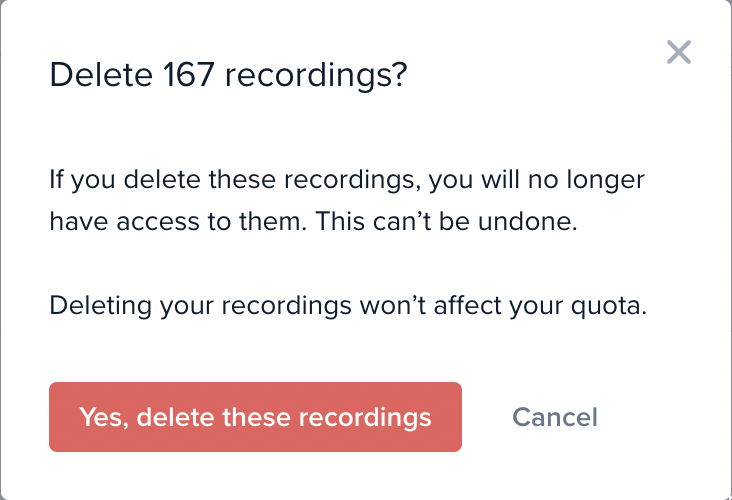
A confirmation dialog will appear; click on Yes, delete these recordings.
Deleting a Folder – Step by Step
Here is a recommended process to help you get started.
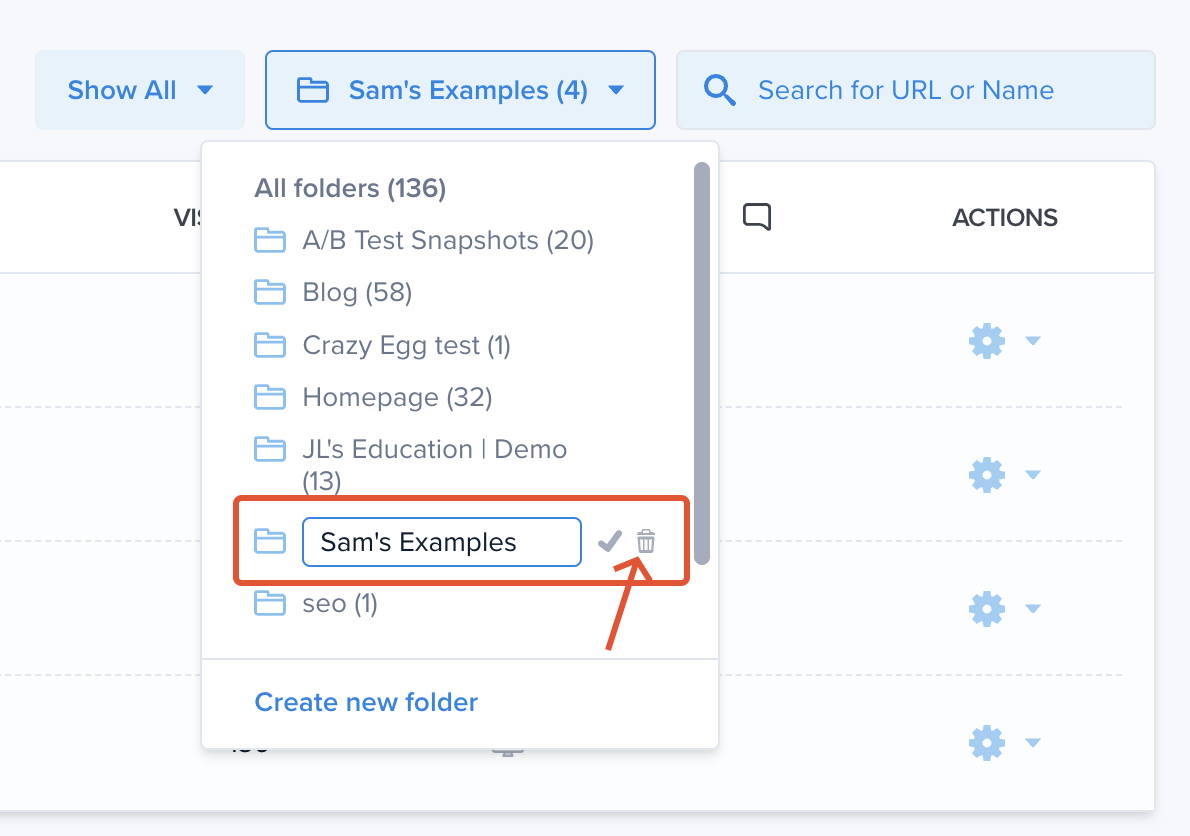
Select your folder by clicking on the All Folders drop-down.
Click on the pencil icon and watch the trash can appear.
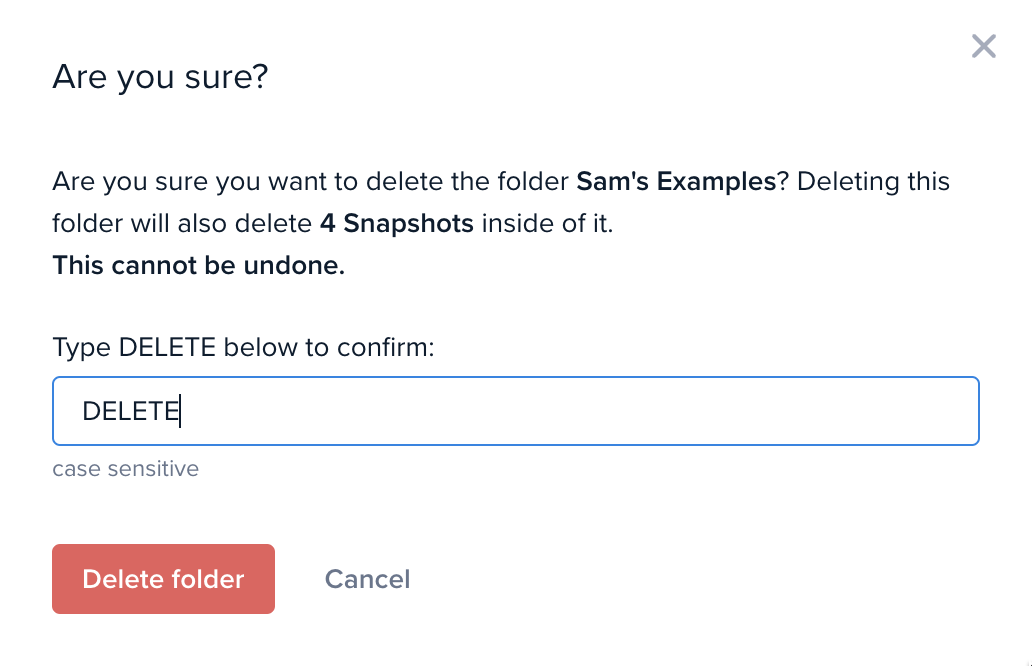
A confirmation dialog will appear, type the ‘DELETE’ text and click on Delete folder.