You can create an A/B test for pages that require a login by using the Crazy Egg desktop app and selecting the Page editor test type.
The desktop app lets you sign in, navigate to the protected page, and then use the Page Editor to make changes for your variant.
When to use the desktop app
Use the Crazy Egg desktop app when the page you want to test is behind a login, such as:
- Account dashboards
- Admin pages
- Customer portals
- Internal tools
- Pages that redirect unauthenticated visitors to a sign-in page
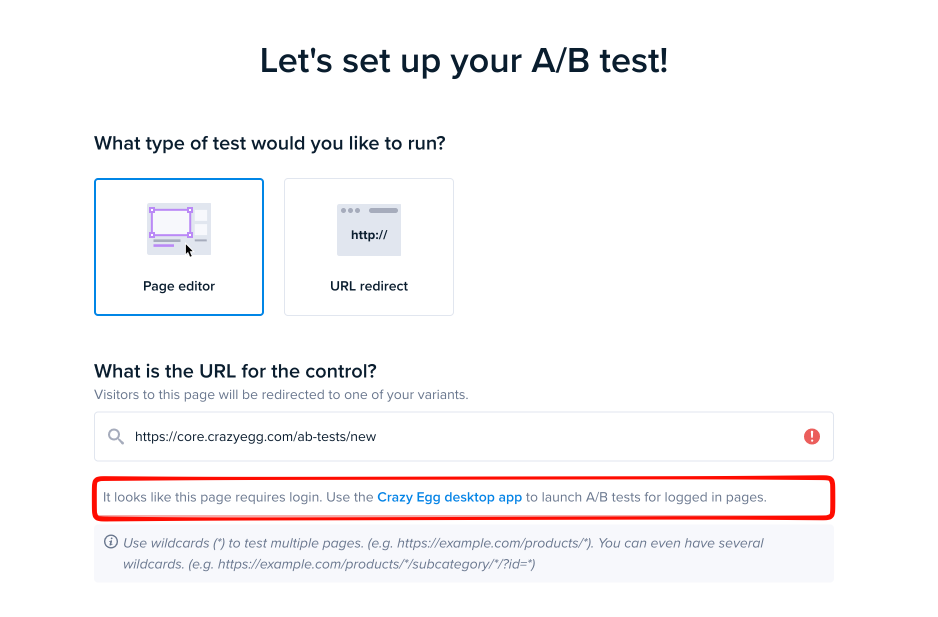
When Crazy Egg detects that your control URL requires login access, you’ll see a message prompting you to use the desktop app.
Select the Crazy Egg desktop app link in the message to download the app for your operating system.
Download the Crazy Egg desktop app
On the download page, choose the installer for your platform: macOS, Windows, or Linux.
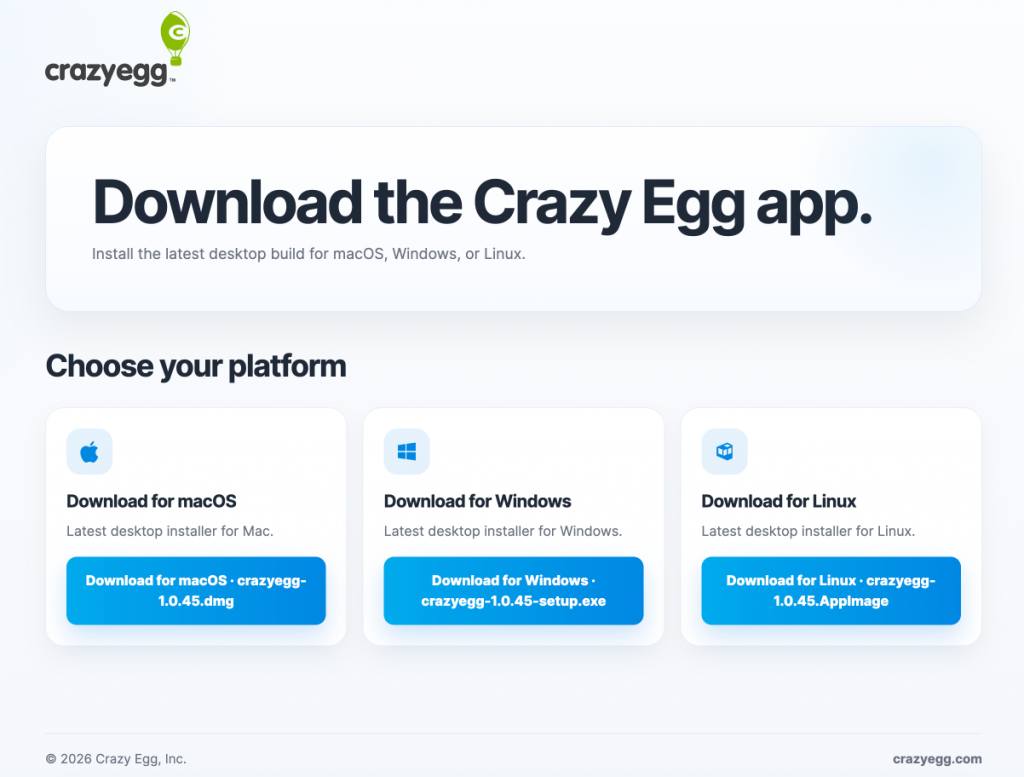
After downloading, install and open the app. On macOS, move the app into your Applications folder.
The desktop app looks like a browser, but it is designed specifically to let you use Crazy Egg features on pages that require an authenticated session.
Create an A/B test behind a login
At this point, the page may still require you to log in or navigate through your app before you reach the exact page you want to edit.
Use Interactive mode to sign in and reach the page
To interact with the page, turn on Interactive mode in the editor toolbar.

Interactive mode is required when you need to sign in, click through navigation, open menus, or otherwise use the page before editing it.
While Interactive mode is on, you can use the page normally:
- Enter your login credentials
- Complete authentication steps
- Navigate through your app
- Open the page you want to test
- Click menus or links needed to reach the target page
Once you are on the correct page, turn Interactive mode off.
Edit your variant
After you turn off Interactive mode, the Page Editor becomes active.
You can now make changes to the page for your variant, such as:
- Editing text
- Hiding an element
- Moving content
- Changing buttons or calls to action
- Adjusting page elements for your test
Make your changes as you normally would in the Crazy Egg Page Editor.
Important: stay on the original test URL
Your A/B test is tied to the URL you entered when creating the test.
If you use Interactive mode to navigate to a different page that does not match the original test URL, Crazy Egg will warn you and return you to the page the test was created for.
For best results, use Interactive mode only to sign in and navigate to the exact logged-in page you want to test. Then turn Interactive mode off before editing.
Launch the test
When your variant is ready:
After the test is launched, you can continue using Crazy Egg in the desktop app or return to your regular browser.