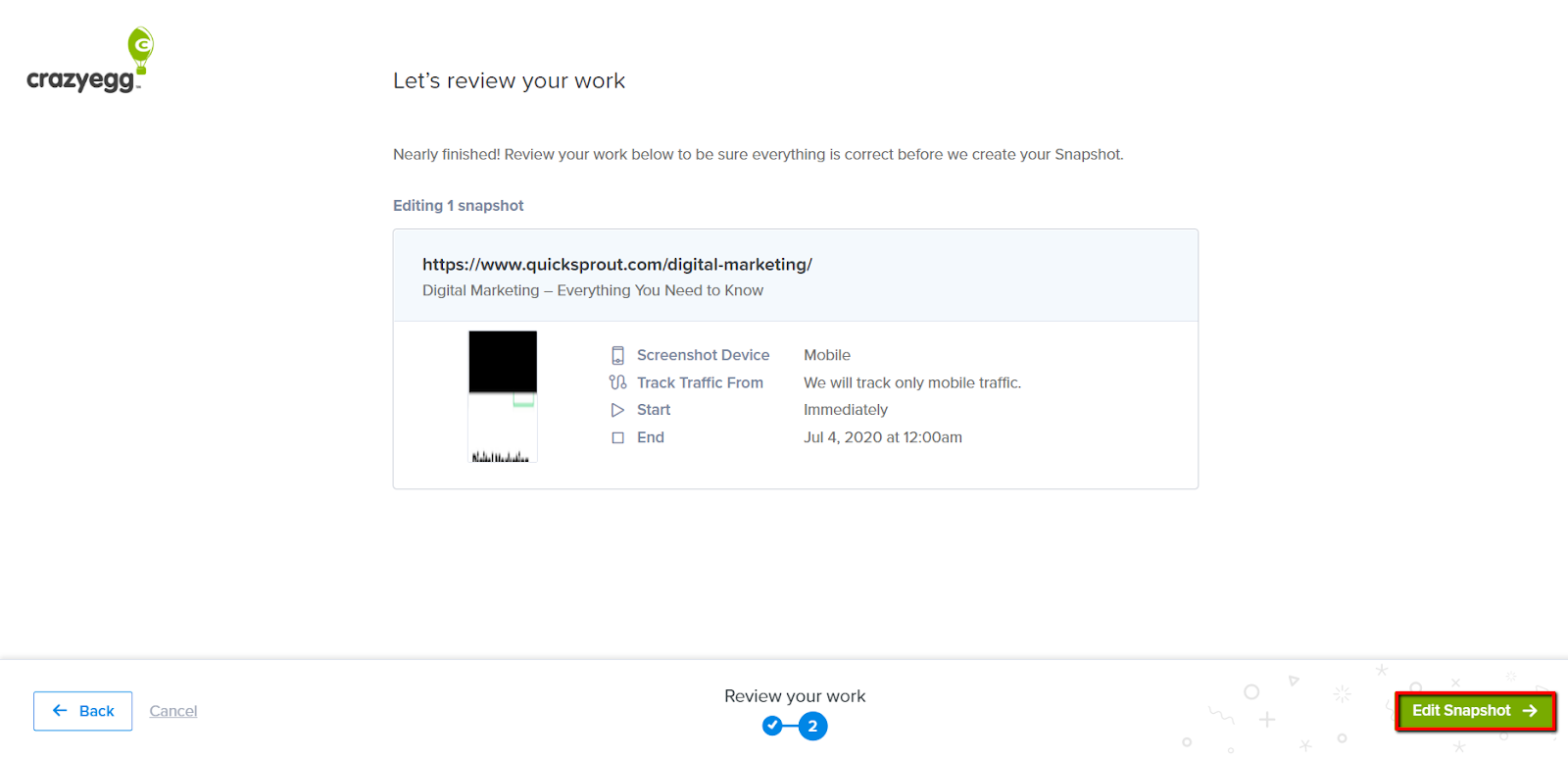
There are times when you will need to edit your Heatmap settings after the Heatmap has been running. There are a variety of reasons, like:
If a Heatmap has completed, for instance, you may choose to edit the Heatmap in order to restart it and collect more data.
Or maybe you forgot to remove your site modal. You will need to edit your Heatmap to change its settings.
You can edit your Heatmap to update its details, such as the duration, tracking traffic type, and advanced settings.
You will NOT be able to edit the Snapshot URL.
Editing a Heatmap Settings – Step by Step
Here is a recommended process to help you get started.
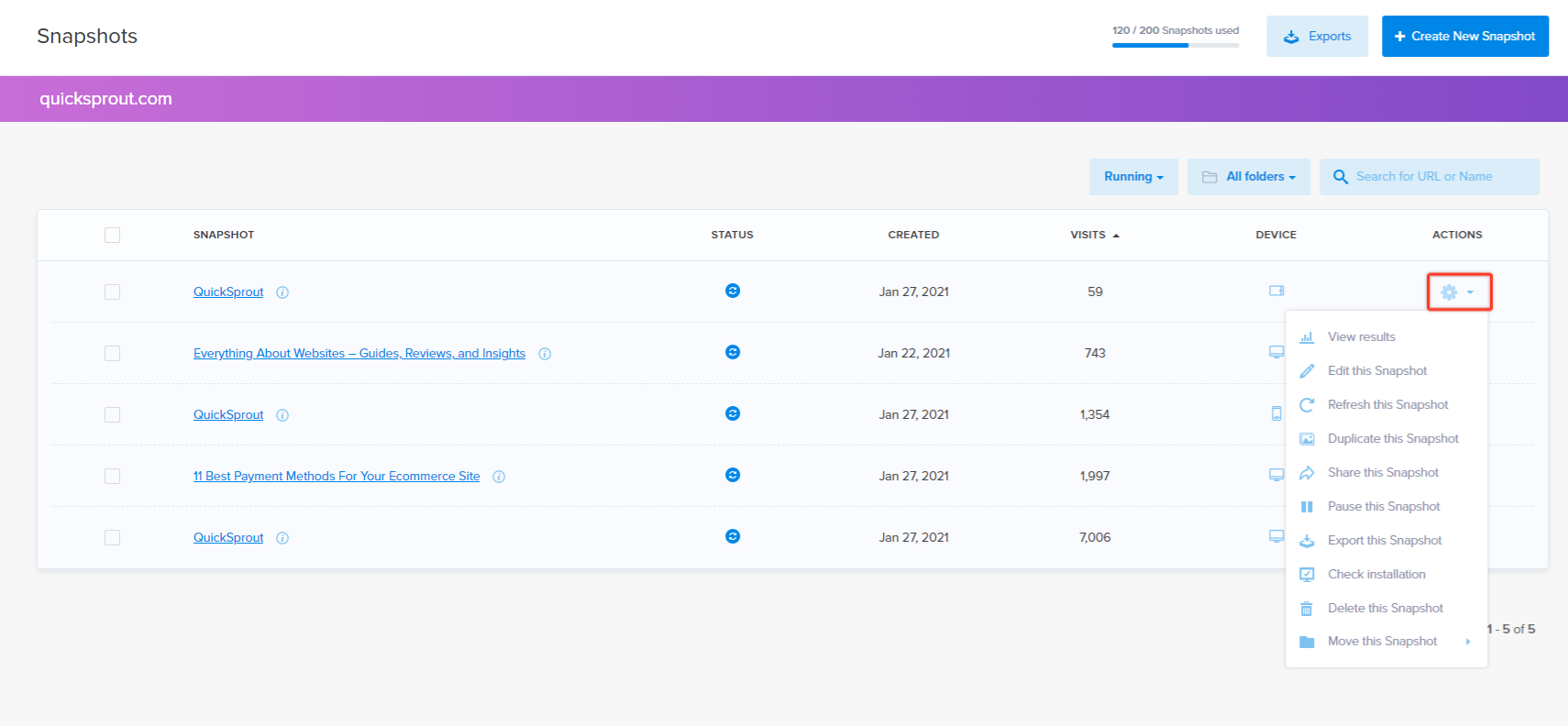
Locate the Heatmap you wish to edit and click on the gear symbol to the far right-hand side.
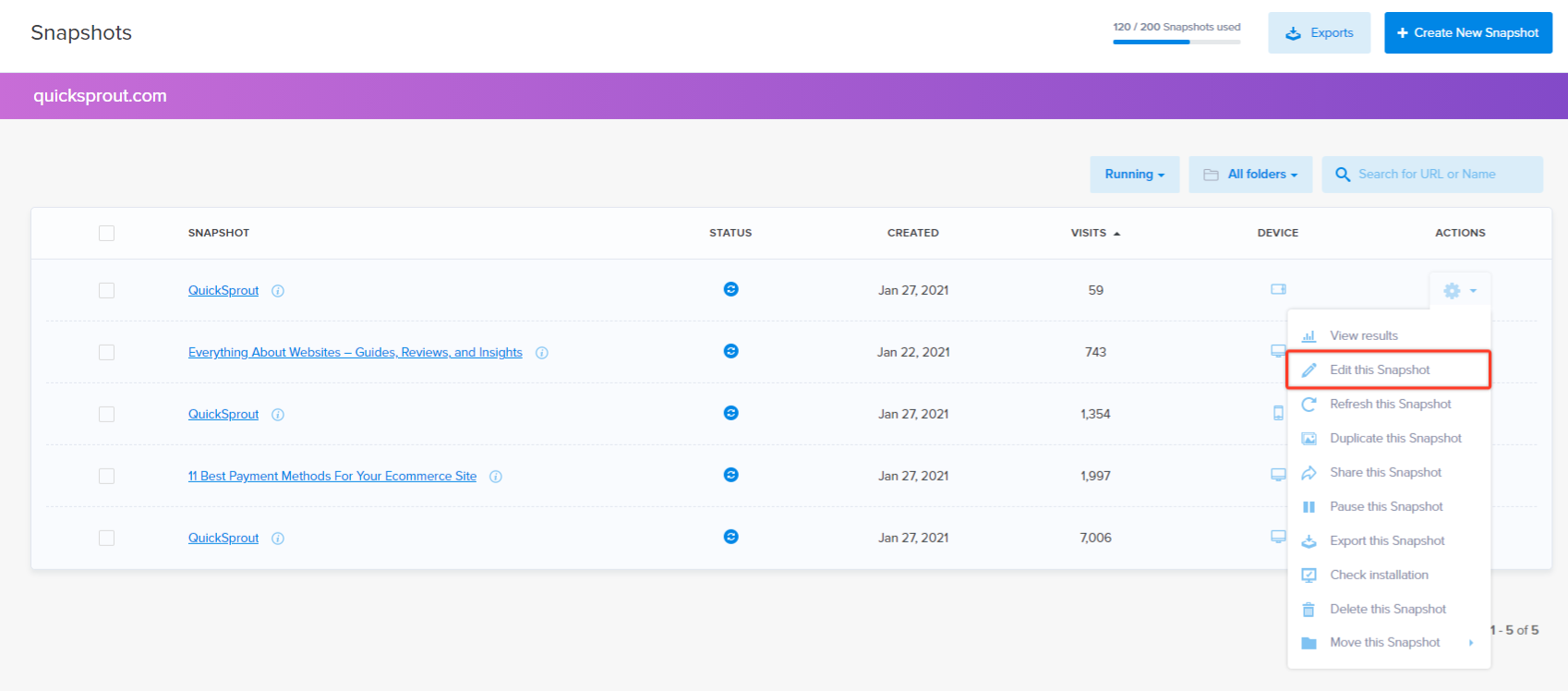
Click on Edit this Heatmap from the drop-down menu.
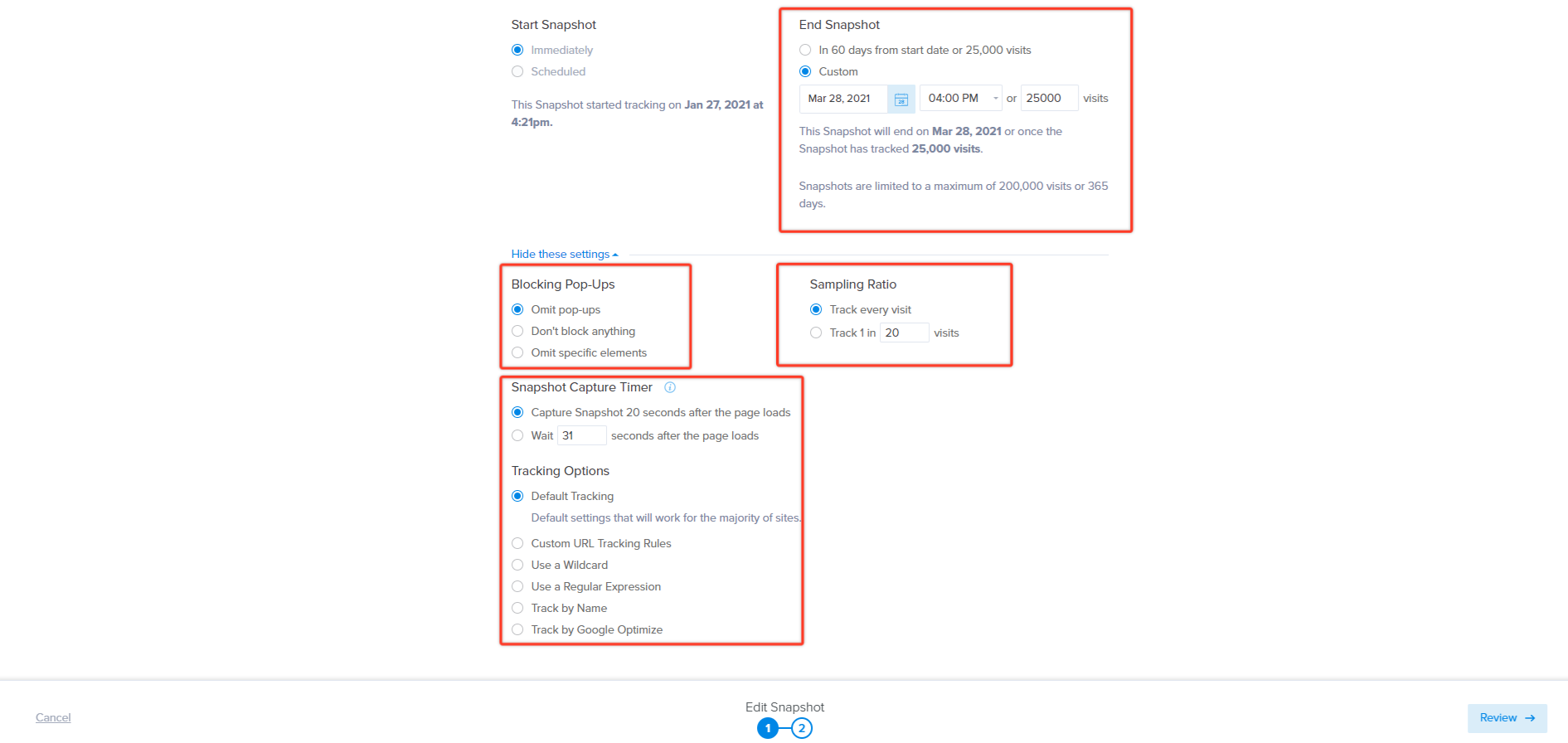
Adjust any settings, tracking rules, or Heatmap duration as needed. You can edit a variety of things, such as the Heatmap Name, End Heatmap Duration Date, and/or the number of visits to track, as well as advanced settings like Blocking Popups, Sampling Ratio, and Tracking Options. You cannot change the Heatmap URL. If you wish to do this, we recommend pausing the Heatmap and recreating it. We also recommend NOT changing the Sampling Ratio or Tracking options once your Heatmap has already tracked visits. For more information, contact our Help Desk to ask our experts why.
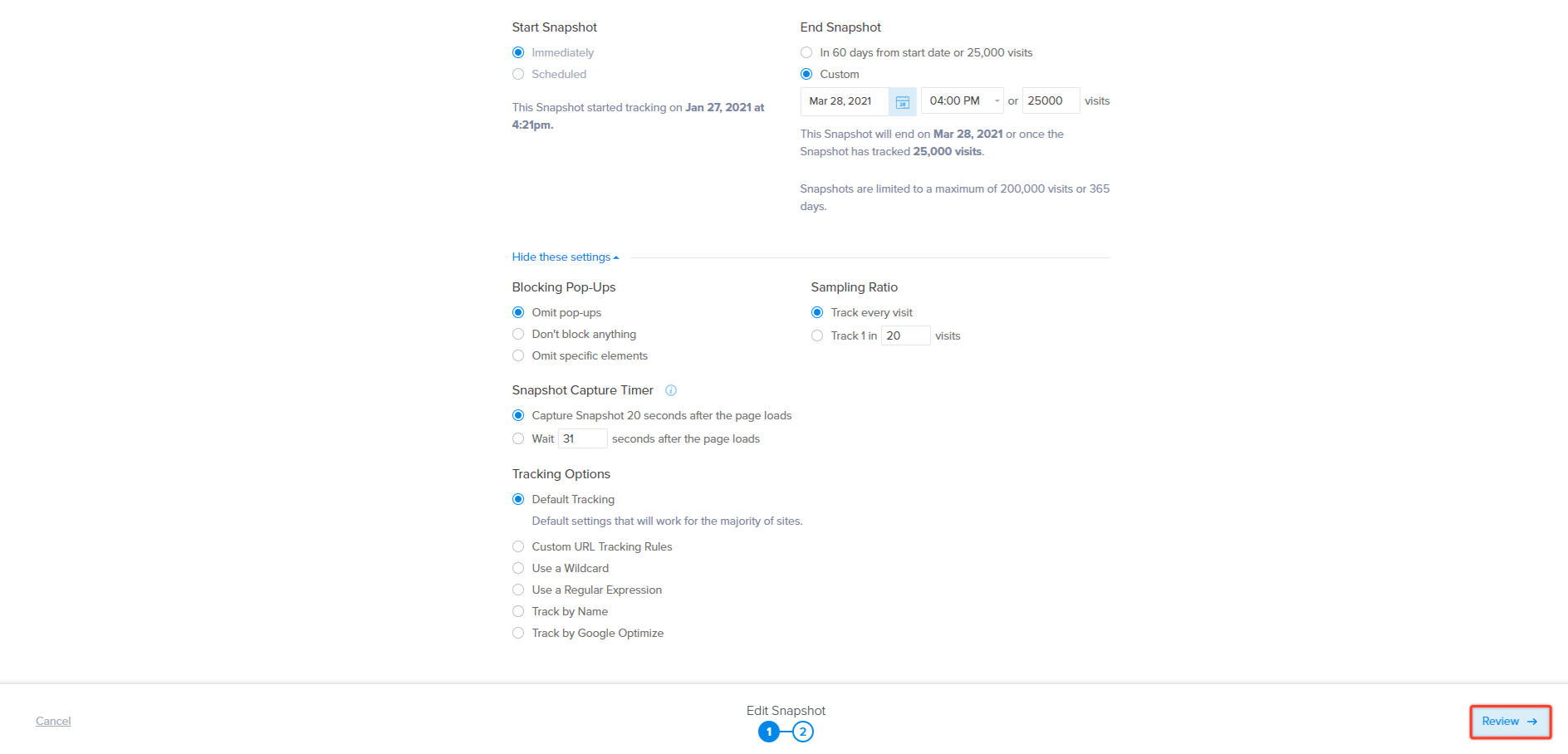
When you are finished, click on the Review button to save your changes.