Creating a Heatmap is the best approach when you want to learn more about your Shopping Cart page. To do this, you will create the Heatmap using our Page Camera Chrome-based extension (install here). This allows you to capture a screenshot of your web page while you are viewing the page in your browser.
Create a Heatmap for your Shopping Cart – Step by Step
Here is a recommended process to help you get started.
Log in to your Crazy Egg Account and then, in a new tab, navigate to your shopping cart page in any of the supported browsers. Add the typical number of items your customers would purchase. This will give you the most realistic view of your page.
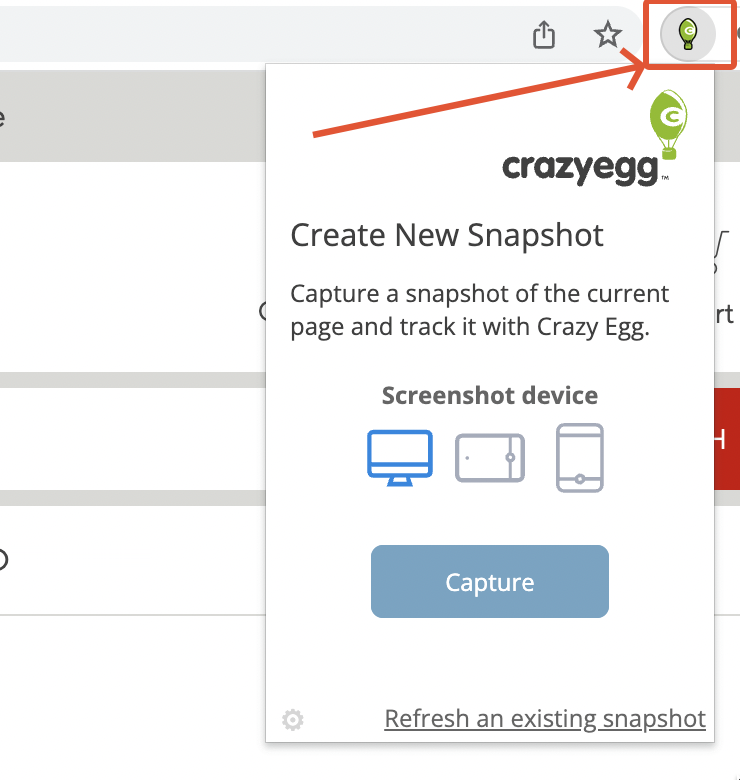
Click on the Page Camera extension icon at the top right-hand corner of your browser.
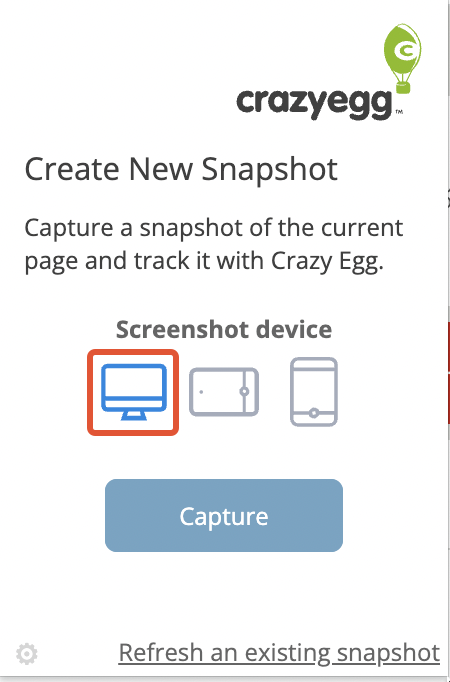
Select the type of device you want the image to be captured with. By default, Page Camera will capture the page from the perspective of a desktop visitor, but this can be changed to Tablet or Mobile.
Clicking Capture starts the Page Camera, which scans your page to create a screenshot. Note: Do not navigate away from the page or change tabs while Page Camera is capturing the screenshot.
You will be asked to review the screenshot. Scroll through the screenshot Page Camera has created to ensure all the content is as intended.
Once reviewed, click Continue.
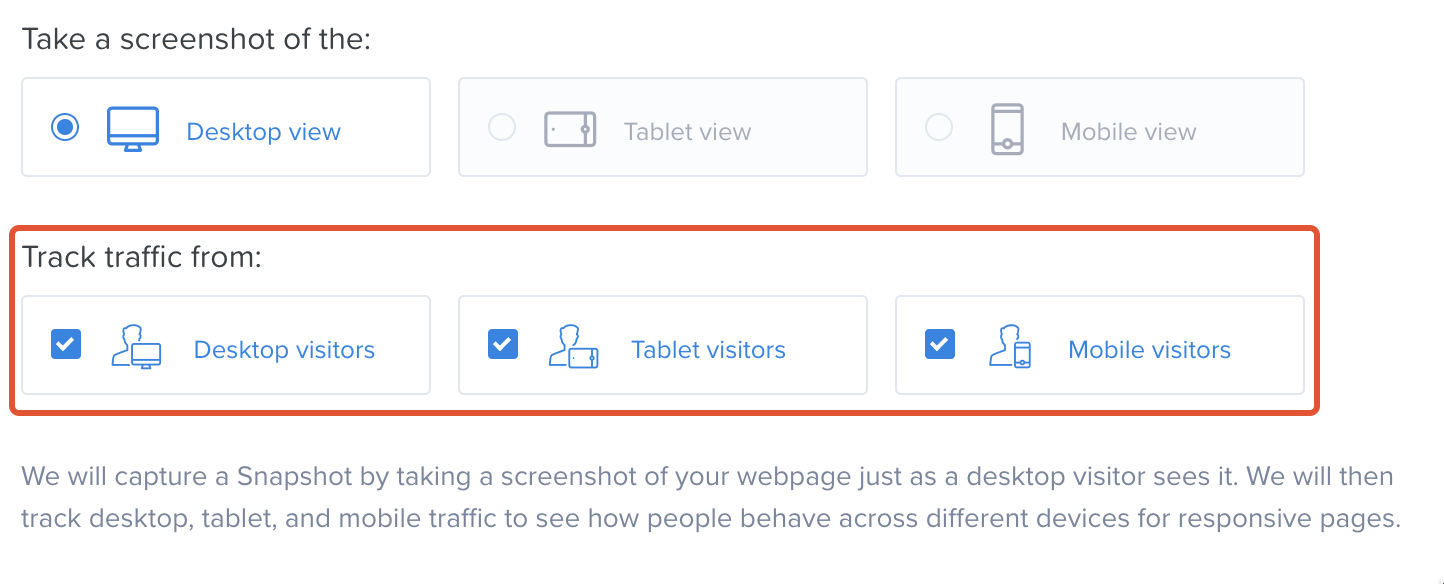
If your mobile visitor volume is less than 25% of your overall visitor traffic to this page, you will want to track traffic from all three device types. Otherwise, choose desktop visitors only. Note: Be careful when creating a second Heatmap for the same page using Page Camera. You might encounter a Multiple Heatmap error if you overlap device-type visitor tracking across multiple Heatmaps that track the same page.
By default, the Start and End Duration settings are set for you. A Heatmap will start tracking immediately. A snapshot will stop tracking after 60 days OR after 25,000 visits. For more information on changing these settings, please visit ‘How to Set the Duration of Your Heatmap’.
Click on Create # Heatmaps button in the bottom right-hand corner.
Congratulations! You have created your Heatmaps. Now, click on Return to Dashboard.