Filtering results for a Heatmap is a great way to view targeted results based on the specific date range (or even device type if you have them combined in one Heatmap). This is even better when you use the Compare Heatmap feature and view results side by side.
Filtering Heatmap Reports – Step by Step
Here is a recommended process to help you get started.
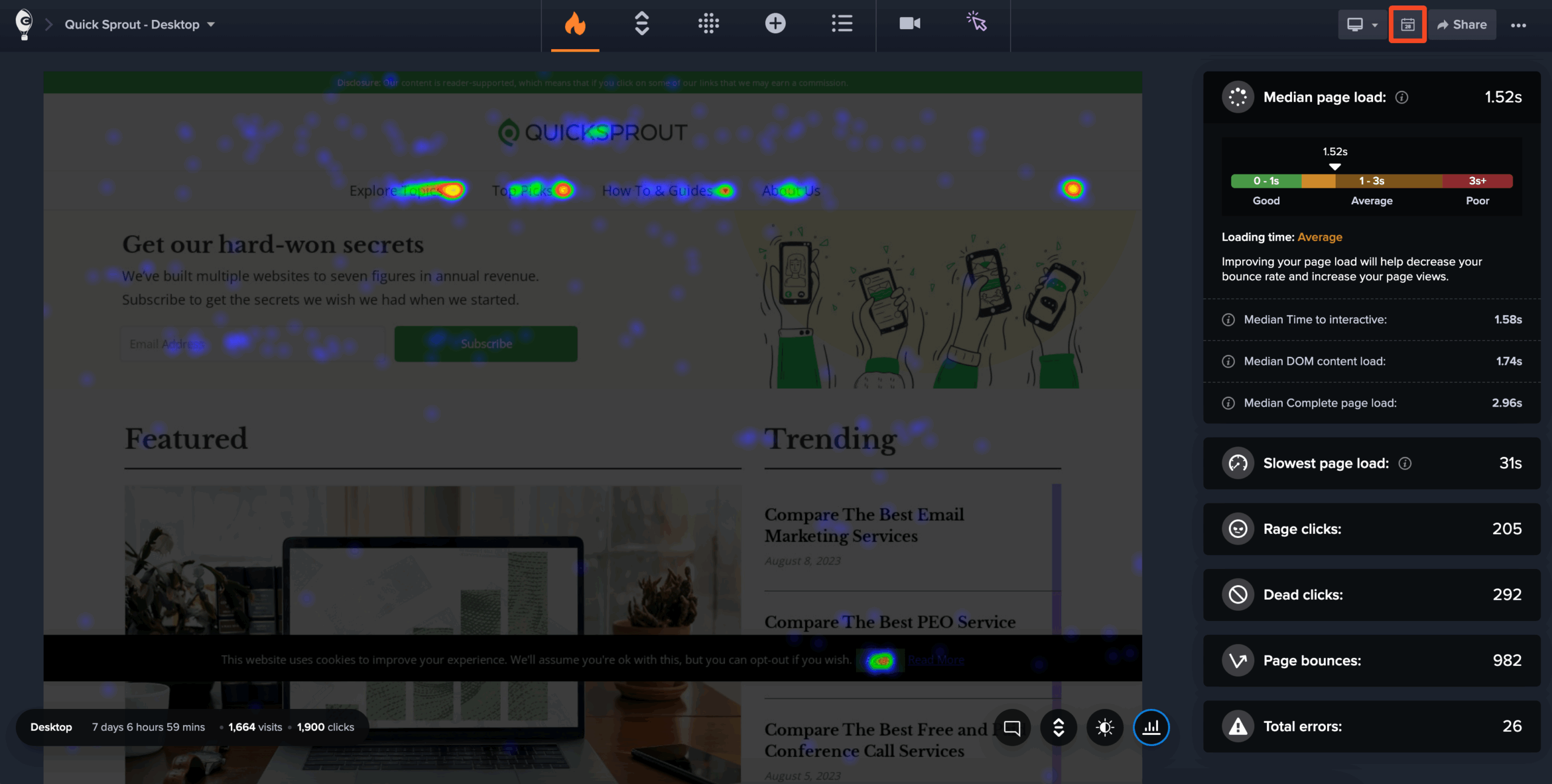
From within the Heatmap Reports Dashboard, click on Filter in the top right-hand corner.
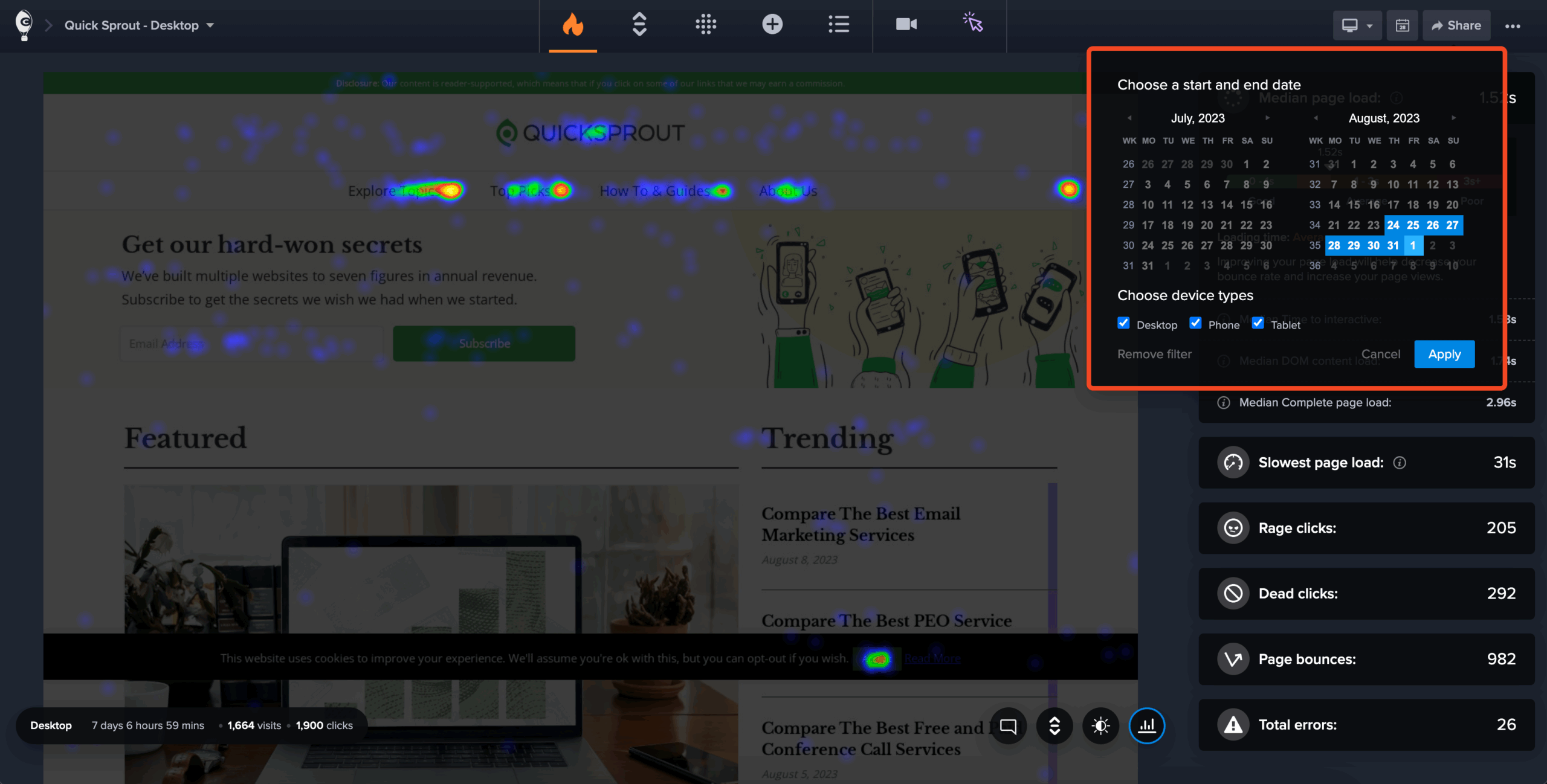
You now have the option to filter by Date Range and/or Device Type. If you configured your Heatmap to track all three or a combination of visitor device traffic, you will be able to filter your reports by Device type. If you have only tracked one type of visitor device traffic, then this option is not available.
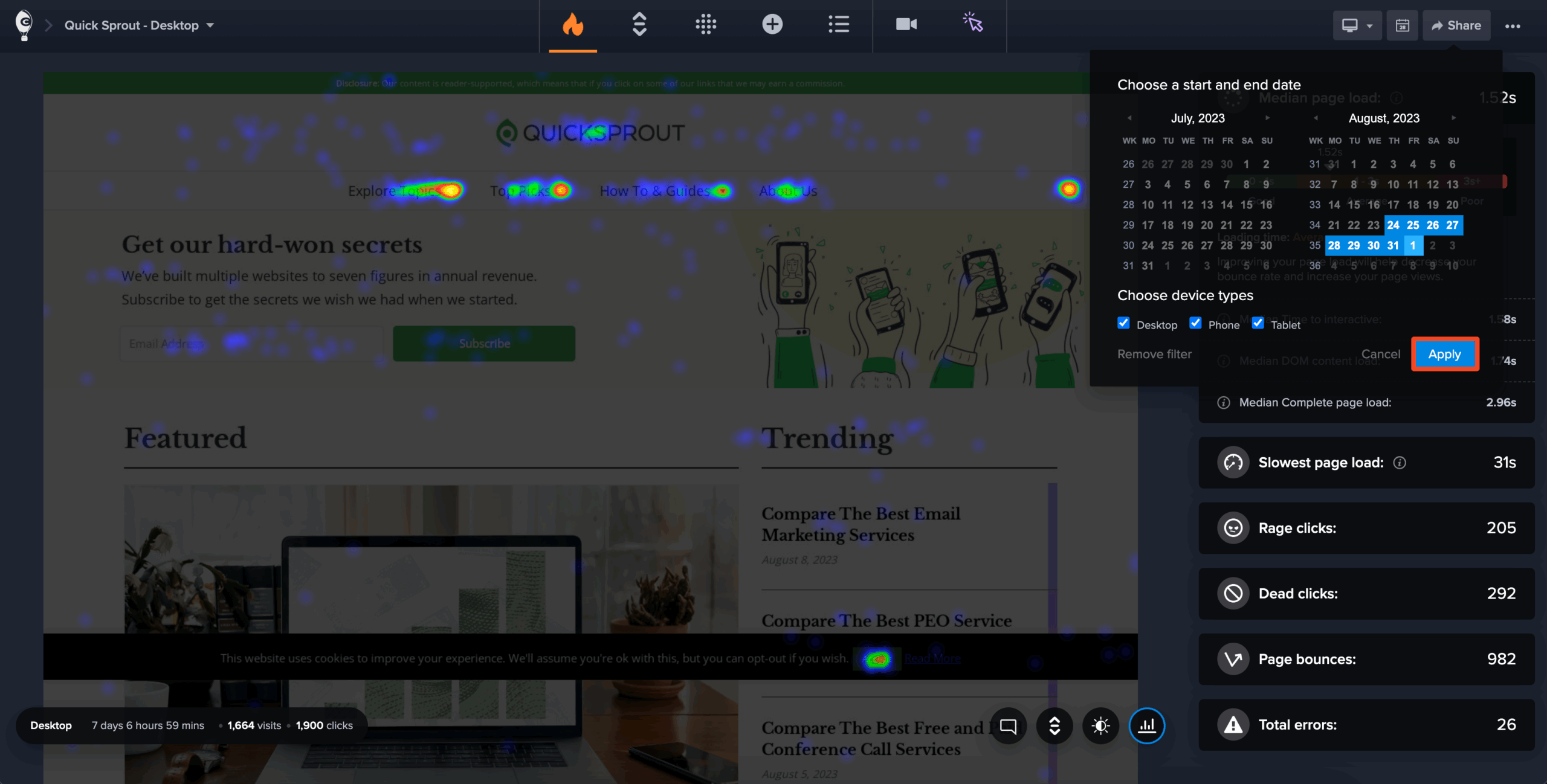
When you have selected the Filter criteria, click on Apply Filter. To remove the filter, click on Filters and then click the link “Clear Filter” and hit Apply Filter.